

You have control.
Support/FAQ for Pro templates
This page contains bug reports, tips and alerts relating to the Pro templates.
Updating Ethos
This section lists issues affecting Pro templates when migrating to a newer Ethos version.
From 1.6 to 26.1
No issues reported
From 1.5 to 1.6
No issues reported
From 1.4 to 1.5
Avoid 1.5.0 thru' 1.5.6 as this could lead to file corruption.
Also, note that Var mixers are not supported in 1.5. During migration any Var mixes in your setups will be replaced by VAR variables (new in 1.5, second page of the model setup screen). Any configuration that was done in Var mixes must therefore be done in the VARs menu. Please remember to take this into account when following the setup guide for your older templates!
Curves menu - new features
Starting with Ethos 1.5.18, the Curve menu contains three new buttons for 'alternative input', 'nearest point', and 'lock'. When calibrating the RC-Soar templates in CAL mode, please do not activate the first two buttons.
The rightmost button ('lock') may be used if desired. It locks the stick value, allowing the stick to be released while adjusting the curve.
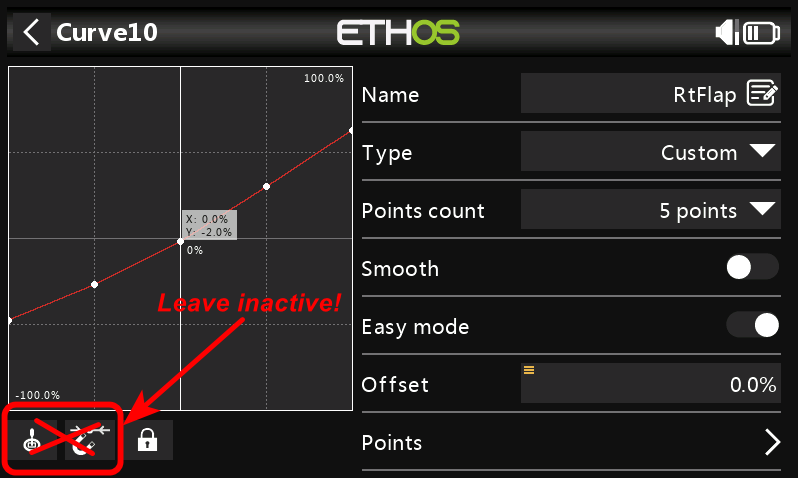
Curve buttons
Alt telemetry not resetting
With the DLG template, hitting the Launch button should reset the Alt telemetry. If not, go to the Alt telemetry line, and check that "Auto offset" is enabled.
No sounds after flashing Ethos 1.5
Starting with Ethos 1.5, audio uses the concept of voices. There are three voices named voice1, voice2 and voice3. Each voice has an associated folder where sound files are stored.
The Pro templates use voice1, so the sounds must be copied to the folder for voice1. To determine the location of the voice1 folder:
- Open the System>General menu.
- Scroll to the Audio section
- Make a note of the entry for 'voice1'. Valid entries include 'default', 'gb', 'us'. (If the entry is blank, then change it to a valid subfolder.)
- Establish a USB connection with your PC
- Look in the \audio folder, and look for the corresponding subfolder for voice1. For example if voice1 = 'gb' then there will be a folder \audio\en\gb (british english)'. Likewise if voice1= 'us' then look for a folder \audio\en\us' (american english).
The folder identified in step 5 is where custom sounds should be copied. Note: do not use the 'system' subfolder, these are for system files.
Dealing with "Lua widget key not found"
Ethos may display a warning with a red triangle if a Lua script is missing or in error. Once triggered, the message may persist even after you select a different model. To clear the message go to the Info screen and click Reset.
If there's no Reset button (on older versions of Ethos), then it's a little more complicated:
- Make sure the active model is the one which first displayed the message
- Go to the Screens menu
- Activate the screen with the suspect widget, and choose a full screen layout.
- Assign a widget (any widget).
- Reboot the transmitter
Now you can reconfigure the screen to taste.
Two Things to Avoid in Ethos
Servo equaliser function
A 'servo equaliser' function was introduced in Ethos 1.5 18. The templates already provide a equalisation function through their built-in CAL mode, and this is incompatible with Ethos' servo equaliser feature. Please stick to CAL mode for the templates.
Move trims to subtrim - avoid!
Ethos 1.5 sports a new option 'Move trims to subtrim'. Please avoid using this as (a) it's not appropriate for setups with complex mixing and multiple flightmodes, and (b) it'll trash your CAL settings
How are 'left' and 'right' oriented in the Pro templates?
'Left' and 'right' are from an observer behind the tail, looking forwards.
Using stabilised receivers
Stabilised receivers like the TW SR10 reserve certain channels (usually around CH12 - CH15) for gyro gain etc. Some templates already use these channels, fortunately it's easy to free up a channel by swapping with another empty channel - see below. (I've heard a report that even with stabilisation disabled on a TW SR10, these channels must still be freed of any mixers.)
Configuring 'cross' trims
Some pilots like to have 'cross' trims (trims on the opposite side to the stick). The Cross trim option is at the bottom of the Trims menu. No other change is needed.
Will the Pro templates work on my X18, X14, XE etc?
The Pro templates are built for the X20. If using a different transmitter, one or two changes may be needed to the control assignments. The setup guide explains how to do this. If you still have issues, please contact me.
How do I change the channel order?
Ethos offers two ways to change the channel order:
Method 1 - swap channels
New in Ethos 1.5 is a smart swap-channels feature, accessible from the Outputs menu. All options including channel name, direction, min/max/subtrim and curves are swapped. In addition, references to swapped channels in mixers, logical switches etc. are updated automatically.
Here's the procedure:
- Go to the Outputs screen
- Long press on any output and open the editor
- Scroll down to the bottom, and choose 'Swap channels'
- Swap between any two channels.
Repeat steps 3 and 4 to achieve the desired channel order.
Method 2 - remap the rx pins
If you have an Archer receiver, or an RX- or G-RX-series receiver with the latest ACCESS firmware, then you can remap the receiver pins. This can be done OTA (over the air) from your Ethos transmitter.
First, register and bind the receiver. Then in the RF menu of your transmitter, open the RX Settings menu. There you'll see the pin mapping, which you can alter to suit.
Template not present in the Model Select menu
There are three possible causes:
- Check you have the minimum Ethos version permitted for your template. The minimum version is shown on the template page.
- Check that you've copied the file to a pre-existing \models folder. On some newer radios, the \models folder is located in internal memory, which should be visible as a virtual drive when connected via USB in bootloader mode.
- Some early versions of the templates had filenames with special characters which are not recognised. Rename the .bin file, changing upper case characters to lower case, and stripping out any non-alphanumeric characters. Then restart the transmitter.
How should I organise my models?
Use the 'custom folders' feature to organise your models (introduced in Ethos 1.1). For example, templates might go into a 'Templates' folder, unflown models would go in a 'Testing' folder, and so on.
Ethos also associates a model type with each setup, this being 'airplane', 'glider', 'heli', 'multi' or 'other'. The model type should not be changed, as it determines the mixers available for programming.
How do I install Ethos updates?
To download and flash the latest version of Ethos, install the Ethos Suite application, available from GitHub. Ethos Suite handles everything, from determining the firmware on your tx, to downloading and flashing the latest firmware and sound files. A USB cable will be required to connect the tx to your computer.
Contact
If you have a query, I can be contacted here. Please include as much detail as possible including: template name and version, Ethos version, transmitter, and the steps to reproduce the issue.